
In short: A checklist of equipment and settings that gives on-site and remote participants an equally great experience.
A hybrid meeting only works when remote participants feel like they're in the room with the rest of the team — not watching a blurry picture and listening to echo from a speaker. Achieving that requires carefully configuring several elements at once: video, audio, and the video conferencing platform itself. Below is a checklist to help you sort through these decisions when designing a hybrid meeting room.
Camera — Framing and Positioning
The camera should be positioned at a height close to seated participants' eye level, not angled down from above or off to the side of the room — otherwise remote participants end up looking at the group "from a bird's-eye view," which makes natural eye contact difficult. In larger rooms, PTZ (Pan-Tilt-Zoom) cameras work well, automatically framing the person speaking or switching between preset shots of the whole room and individual participants. The lens's field of view matters too — it should cover every fixed seat at the table, without anyone needing to manually pull their chair into frame.
Audio — the Foundation of a Good Remote Experience
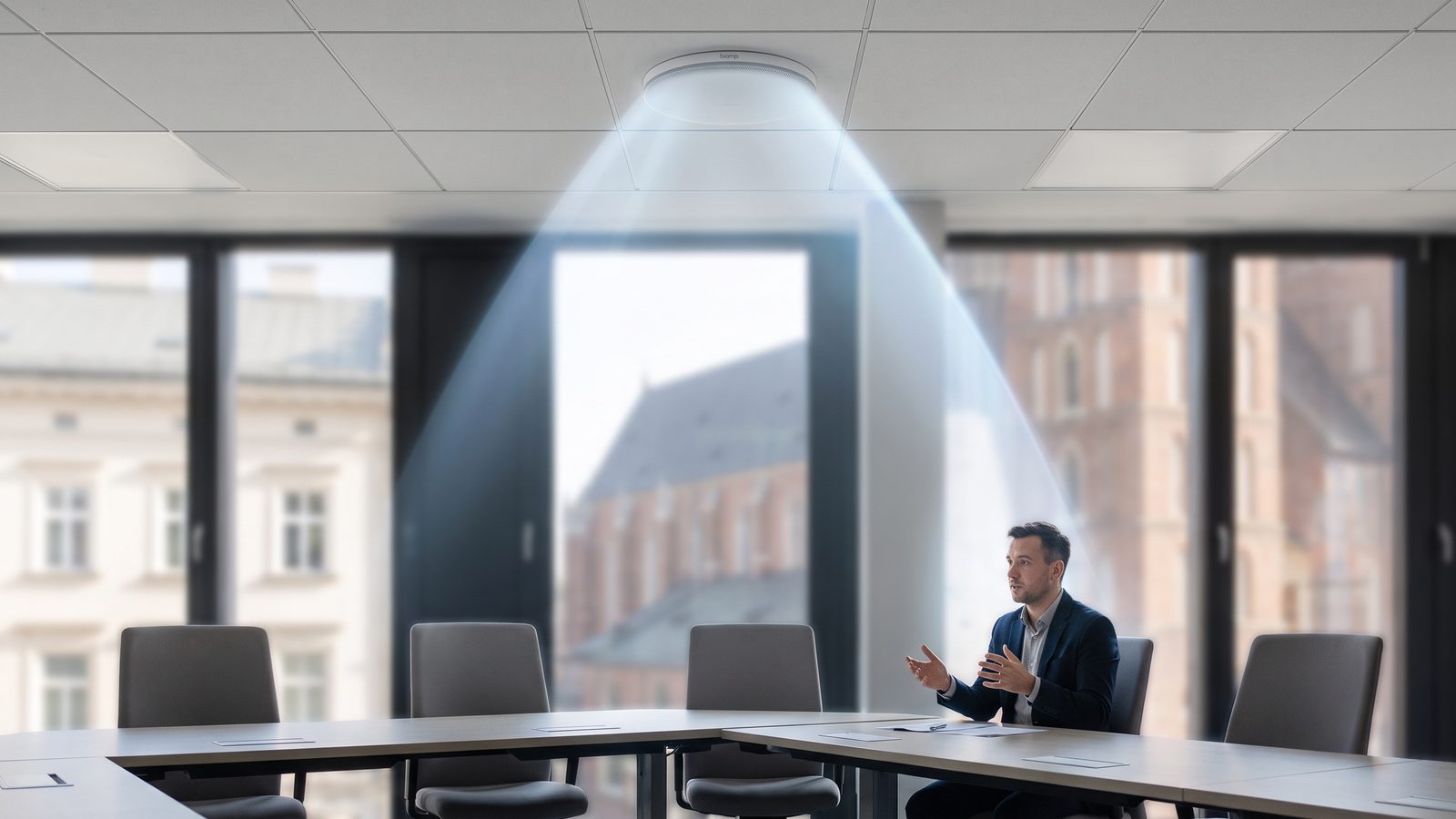
Viewers can mentally fill in gaps in a blurry picture, but unintelligible audio makes it impossible to participate in a meeting at all. Two elements are critical: microphones that cover every seat at the table (ceiling- or table-mounted, depending on room size) and a DSP with echo and noise reduction that eliminates feedback between speakers and microphones. Speakers are best positioned so sound reaches every seat evenly, not just the people sitting closest to the screen.
- Screen or projector — should be visible from every seat at the table, without glare from windows or overhead lighting.
- Video conferencing platform — the hardware needs to be certified, or at least verified, for compatibility with whichever system the company actually uses (e.g. Microsoft Teams Rooms, Zoom Rooms).
- Control panel — a single "start meeting" button dramatically cuts down on the technical hiccups reported at the start of every meeting.
Network and Connection Stability
Even the best audio-visual equipment won't help if the room's network can't provide stable bandwidth for high-quality video. It's worth prioritizing video conferencing traffic on the network (QoS) and, wherever possible, using a wired connection instead of Wi-Fi for fixed devices in the room — this reduces the risk of choppy video during important meetings.
Rule of thumb: for hybrid rooms, it's worth testing the setup from the remote participant's perspective, not just from inside the room — only that reveals how the meeting actually looks and sounds on the other side of the screen.
Checklist Before the First Meeting
Once installation is complete, it's worth running a test call with someone joining remotely and checking, in turn: image clarity from the camera under typical lighting, speech intelligibility from every seat at the table, the absence of feedback and echo, and smooth transmission under the office network's full daily load. Only a test under conditions close to real use gives confidence that the room is ready for everyday use.
Summary
A well-configured hybrid room is the result of the camera, audio, screen, and network all working in harmony — none of these elements performs fully well in isolation from the others. Design the room with the remote participant in mind, because they're the one who will notice every configuration compromise first.
Read also: Microsoft Teams Rooms